
FAQs
FAQs
Here are the answers to some of our most frequently asked questions.
Fiesta Booking Portal
Help with login & registration
How do I login?
Your school or club will have their own unique MagicBooking URL, navigate to it to login or register a new account.
If you don’t know your school’s or club’s unique MagicBooking URL you can login here: https://www.magicbooking.co.uk/parent-login
⚠️ You won’t be able to create an account here, if you need to create an account please contact your school or club or email info@magicbooking.co.uk
To login, fill in the email and password you have used to register your account.
I’ve forgotten my password, how can I reset it?
If you have forgotten your password, click the ‘Forgot Password?’ link below the email and password input fields.
Enter the email address you have registered your MagicBooking account with and submit your request.
An email will be sent to your registered email address with a link to reset your password.
Click the link to reset your password, follow the steps, and navigate back to the login once reset.
I’m an additional account holder, how do I login?
If you have been added to MagicBooking as an additional account holder, you can login by resetting your password with the email address assigned to your account by the main account holder.
For help on how to reset your password, click here
How do I register an account with MagicBooking?
To register an account, navigate to your school’s or club’s unique MagicBooking URL and click ‘Don’t have an account yet? Create one here’.
If you don’t know your school’s or club’s unique MagicBooking URL and you are trying to create an account on the MagicBooking commercial website, you won’t be able to create an account here, if you need to create an account please contact your school or club or email info@magicbooking.co.uk
Follow the steps and enter the information to create your account.
Once submitted, an email will be sent to your email to validate your account.
Once validated, you’ll be able to login to your account. From here you can navigate to the ‘Children’ section to add a child to your profile.
You can log-in from the MagicBooking commercial site (www.magicbooking.co.uk), but you won’t be able to create an account from here. To create an account please contact your school or club or email info@magicbooking.co.uk to get your school or club’s URL.
What are Centres? Centres are the locations where childcare is provided by your school/club. When registering you can add as many centres as your child attends.
Need more help? Watch the video below on how to create your MagicBooking account
Help with the dashboard
What is the home page/dashboard?
On the home page/dashboard, you’ll be able to see all your notices from your school or club and your upcoming bookings as well as have quick access to book an activity.
What are notices?
Notices are a way for your school/club to notify you on any news or updates surrounding their provision.
Notices will also show you warnings and information about your MagicBooking account.
Click on a notice to see more details.
Help with booking an activity
How do I view activities that I can book?
To book an activity, navigate to the ‘Book Activity’ section. Here you will see all the activities offered by the centres you are registered with.
If you can’t see any activities, it may be because you haven’t registered your account with any centres. For help on how to add a centre, click here
What are Centres? Centres are the locations where childcare is provided by your school/club. When registering you can add as many centres as your child attends.
How do I filter activities?
You can filter activities by the centre they are linked to at the top of the page.
Select a centre in the dropdown list and only activities linked to this centre will be shown.
⚠️ The centre filter will only show if your account is registered with multiple centres
How do I view an activity’s details?
Activities are displayed as cards and each card contains some information about the activity.
Further details about an activity can be viewed if you click on the ‘Read more’ button on an activity card.
What does all this activity cards mean?
From top to bottom, each activity card shows the:
- Centre name – the centre the activity is provided at
- Ages – the age range the activity is restricted to
- DOB – the date of birth range the activity is restricted to
- Classroom(s) – the classrooms the activity is restricted to
- Activity name – the name of the activity
- Activity dates – the date range the activity is running
- Booking type – the booking type of the activity, to understand the different booking types and their meaning, click here
- Runs on – the days of the week the activity runs on
- Pricing – shows a preview of the pricing for sessions in the activity
- Description – a description of the activity
- Special needs – any information relating to the accommodation of special needs children for the activity
- Disabilities – any information relating to the accommodation of disabled children for the activity
- Media – any media attachments for the activity, e.g. a PDF or an image
What do the activity booking types mean?
Each activity has its own booking type which affects how you can book the activity. There are a total of 6 activity booking types:
- Daily – allows you to select your session and book a date range or ad-hoc (individual) days.
- Weekly Booking – allows you to select your session and book one or more whole weeks.
- Contract – allows you to select your session and book any day(s) of the week, for the entire period the activity runs on.
- Whole Season – allows you to book for the entire time and every day of the week the activity runs on, you can’t select your session or dates.
- Slot Booking – allows you to select a specific date and time per child, used for parents evening.
- Trip – allows you to book a one-off trip, you can’t select your session or dates.
Need more help? Watch the videos below on activity booking types.
How do I book an activity?
Navigate to the ‘Book Activity’ section, find the activity you would like to book, and click the ‘Book’ button. From here you can follow the steps to book your activity.
There are 4 – 5 steps to complete your booking.
Step 1 – Book Sessions
- Here you will select the children you’d like to book the activity for, the session you’d like to book, and the dates you’d like to book.
- The ability to pick your session and dates will depend on the activity booking type. To learn what each activity booking type means, click here
- Once you have selected your child, session, and dates you can confirm your selection by clicking the ‘Add Dates’ button. From here you can add more dates for a different child/session, or you can continue with your booking by clicking the ‘Next’ button.
Step 2 – Check Availability
- Here you can check the availability of the dates you’ve selected on the previous step.
- You can see the dates you’ve selected week by week with the week tab picker or you can view all the dates in a calendar view.
- Navigating from tab to tab will show you the dates selected along with additional information and the ability to select/unselect specific days if you wish to remove them from your booking.
- The check availability step works on a traffic light system:
- Green – full availability, if all days selected in the week are available
- Orange – partial availability, if some of the days selected in the week are available and some aren’t
- Red – no availability, if none of the days selected in the week are available
⚠️ When making a contract booking, if you unselect a day of the week, it will unselect all of those days in your booking period as it is a contract booking. E.g. Unselecting Tuesday will unselect all Tuesdays
⚠️ When making a whole season booking, you will not be able to select/unselect specific days as the entire season must be booked
⚠️ If an activity has no more availability but has an active waiting list, you will see the option to join the waiting list for the days where the activity is full. To learn more about how the waiting list works, click here
Step 3 – Extra Options
- If an activity has extra options linked to it, you’ll be able to select the extra options for each child in your booking.
- The availability of the extra option works the same way as the previous step, with the traffic light system.
- If you have a booking with many dates and want to select the extra option for all the dates, you can do so by clicking the checkbox under the child’s name.
Step 4 – Booking Recap
- Here you’ll be able to see all the information about your booking before proceeding to checkout.
- You can view the activity and sessions you have booked, the number of sessions, the children booked, and the cost of the sessions and booking.
- You can view the dates booked in a calendar view.
- If you made a mistake or no longer want to book the activity, you can delete it from your basket.
- If you want to add another activity before checking out, you can do so by clicking the ‘Add another activity’ button.
- You will see a breakdown of your booking totals and have the option to add a promo code.
- When you are ready to checkout, click the ‘Proceed to Checkout’ button.
Step 5 – Checkout
- At checkout, you’ll be able to select how you’d like to pay for your booking. MagicBooking currently supports up to 8 different payment options.
- Each activity has its own settings defining which payment types are allowed so if you don’t see 8 options, don’t worry.
- To learn more about how you can pay for your booking, click here
How will I know if my child is successfully booked on?
If you have successfully booked via our website, then your place is secure. You may not receive an additional email from us – so please just ensure that you turn up for the start of the course.
How soon before each session can I book my child onto clubs/wraparound?
While it does vary from school to school, as a rule of thumb bookings can be made onto our clubs and wraparound up to an hour before the session begins! Simply add your child onto the service you desire via your magic booking page.
How many sessions can I book at once?
Our magic booking session is very flexible. You can do ad-hoc bookings if you need them, or block bookings for a whole term if you know that childcare will be required.
Help with checkout & payments
What is Bank Transfer and why is it the safest way to pay?
Paying via Bank Transfer allows you to directly authorise the payment from your banking app. You don’t have to enter any card details, making it simple, effective, and secure.
How can I pay using Bank Transfer?
Select the ‘Bank Transfer’ option on checkout and proceed to the next step to select your bank.
Once you’ve selected your bank, you’ll be redirected to your banking app where you can authorise the payment.
Once authorised, you’ll be taken back to MagicBooking and if successful your booking will be confirmed.
How can I pay using credit or debit card?
Select the ‘Credit/Debit Card’ option on checkout. Your billing details will automatically be pulled from your account details. If you’d like to pay with a card that has different billing details to those on your account, you can edit it by clicking the ‘edit’ button and saving your changes.
Once you are happy with the billing details, proceed to the next step to enter your card details and make your payment.
If your payment is successful, you’ll be taken back to MagicBooking and your booking will be confirmed.
How can I pay in instalments? (Split into monthly payments)
If you’d like to spread the cost of your booking, select the ‘Split into monthly payments’ option on checkout.
You have 4 different payment options when splitting payments into a monthly instalment plan:
- Credit/Debit Card
- Tax-Free Childcare Vouchers
- Other Childcare Vouchers
- Standing Order
How can I pay using a one-off Tax-Free Childcare voucher?
Select the ‘Tax-Free Childcare Voucher’ option on checkout.
If you haven’t already done so, you’ll be able to connect your HMRC Tax-Free Childcare account with MagicBooking. For more information on how to connect your account, click here
Check that your account balance can cover the amount you are paying by Tax-Free Childcare voucher. If you don’t have enough funds on your account, you can click the ‘Top-up’ button to add money to your account.
If not already populated, enter the Tax-Free Childcare unique reference number for each child in your booking.
Select the amount you would like to pay by Tax-Free Childcare voucher, you can cover the full amount or a partial amount.
If you select a partial amount and there are multiple children in your booking, you’ll have to specify the amount to be paid by Tax-Free Childcare for each child.
If you cover a partial amount, you’ll have to pay for the rest of the booking with another payment option.
⚠️ To make a successful Tax-Free Childcare payment, the childcare provider you are paying must be linked to you HMRC Tax-Free Childcare account. If the childcare provider is not linked, your payment will fail.
How do I link my childcare provider to my Tax-Free Childcare account?
⚠️ To make a successful Tax-Free Childcare payment, the childcare provider you are paying must be linked to you HMRC Tax-Free Childcare account. If the childcare provider is not linked, your payment will fail.
Navigate to your Tax-Free Childcare account, click here to sign in
How can I pay using a one-off childcare voucher?
Select the ‘Other childcare voucher’ option on checkout, choose your childcare voucher provider, and specify the amount you would like to cover with the voucher.
You can cover the full amount or a partial amount.
If you cover a partial amount, you’ll have to pay for the rest of the booking with another payment option.
How can I pay using my account credit?
If you have credit on your account, you’ll be able to select the option to apply the credit on checkout.
If your credit only covers a partial amount, you’ll have to pay for the rest of the booking with another payment option.
To learn more about the different types of account credit you can have, click here
How can I book and pay later?
Select the ‘Pay Later’ option on checkout and submit your booking.
You’ll have to cover the cost of the booking at a later date.
⚠️ This option may not be available at your school or club
Help with the e-shop
How do I view e-shop items?
To view the e-shop, navigate to the ‘E-Shop’ section.
Here you will find all the items your school or club has listed in their E-Shop.
Why am I restricted with how much I can buy on certain items?
Some items are restricted by quantity per child, so you’ll only be able to purchase as much of the item as the max quantity allows.
How can I buy an e-shop item?
To buy an item from the e-shop, navigate to the ‘E-Shop’ section. Find the item you’d like to purchase and add it to your basket.
When you are happy with your selection, click the ‘Checkout’ button.
You’ll be taken to a recap page where you can review what’s in your basket and the total of the basket. As well as this you’ll be able to select what centre you’d like to collect your item at, if there is an option to chose from.
Click the ‘Pay Now’ button to be taken to the payment stage to complete your order.
How do I view my orders?
To view your past e-shop orders, navigate to the ‘E-Shop’ section and click the ‘View My Orders’ button.
Here you’ll see a list of all your past orders.
How do I pay for an outstanding order?
To pay for an outstanding e-shop order, navigate to the ‘E-Shop’ section and click the ‘View My Orders’ button.
Click the ‘View’ button against the e-shop order you’d like to make a payment for.
You’ll be taken to the orders detail page where you can click the ‘Make a Payment’ button to make a payment.
Help with my bookings
How do I view my bookings?
To view your bookings, navigate to the ‘Bookings’ section.
Here you’ll be able to see a list of all your bookings, past, present, and future.
What are archived bookings and how do I view them?
Archived bookings are bookings with no outstanding payments that are 30+ days old.
These are kept in a separate list to keep the list of newer bookings streamlined for easy navigation.
To view your archived bookings, navigate to the ‘Bookings’ section and click on the ‘Include Archived Bookings’ button. To remove the archived bookings from the list, click on the button again.
How do I view my bookings in a calendar?
To view your bookings in a calendar, navigate to the ‘Bookings’ section and click the ‘Calendar View’ button.
Here you’ll be able to select which activities and children you want to see in the calendar. Once you have made your selection, click ‘View Calendar’ and you will see all the bookings in your selection in a calendar view.
What does my account balance mean?
Your account balance reflects any outstanding or overdue payments and any credits on your account.
If you have an outstanding payment and no credits on your account, your balance will be negative to indicate the amount outstanding.
If you have sufficient credit on your account to outweigh any outstanding payments, your balance will be positive to indicate the amount in credit.
You can have two types of credit, normal credit and CCV credit. CCV credit indicates payment made on your account using childcare vouchers.
CCV credit can only be used to pay for childcare and not for things like the E-Shop.
Normal credit can be used on anything.
How do I view my account balance?
To view your account balance, navigate to the ‘Bookings’ section.
Here you’ll be able to see a breakdown of your account balance.
How do I view my overdue balance?
To view your overdue balance, navigate to the ‘Bookings’ section.
Here you’ll be able to see your overdue balance.
How do I make a payment for one or more bookings?
To make a payment for one or more bookings, navigate to the ‘Bookings’ section.
Select one or more bookings you’d like to make a payment for by checking the checkbox against the booking in the list and then click the ‘Make a payment’ button.
Here you’ll be taken to a recap page where you can view what you are paying for before proceeding to checkout.
⚠️ If you are making a payment on an instalment plan, you can choose to pay the next instalment or pay a partial amount.
How do I view my upcoming instalments?
To view your upcoming instalments, navigate to the ‘Bookings’ section and click on the ‘View’ button in the ‘Upcoming Instalments’ section.
Here you’ll see a list of all your upcoming instalments within the next 3 months with a link to go directly to the relevant booking.
You won’t be able to see past instalments in this section; if you wish to view specific past instalments navigate to the booking and view more details. To learn how you can view more details for a specific booking, click here.
How do I view more details about a booking?
To view more details about a booking, navigate to the ‘Bookings’ section and click on the ‘View’ button in the list next to the booking you wish to see in more detail.
You’ll be taken to that bookings page where you can see all the information relating to it.
How do I view the dates booked in a booking?
To view the dates booked in a booking, navigate to the ‘Bookings’ section and click on the ‘View’ button in the list next to the booking you wish to see in more detail.
Here you can see all the dates booked within the booking as well as their status under the ‘Dates Booked’ tab.
How do I view the payments made in a booking?
To view the payment made on a booking, navigate to the ‘Bookings’ section and click on the ‘View’ button in the list next to the booking you wish to see in more detail.
Here you can see all the payments made on the booking under the ‘Payments Made’ tab.
How do I view the expected payments in a booking?
To view the expected payments on a booking, navigate to the ‘Bookings’ section and click on the ‘View’ button in the list next to the booking you wish to see in more detail.
Here you can see all the expected payments on the booking under the ‘Expected Payments’ tab.
How can I amend my booking to add or cancel dates?
o amend your booking, navigate to the ‘Bookings’ section and click on the ‘View’ button in the list next to the booking you wish to amend.
You can add or cancel dates to a booking.
Adding Dates
- To add dates, select the add dates checkbox and enter the required fields, and click ‘Check Availability’.
- You will see a list of all dates within your search criteria and their booking availability.
- You can select/unselect whichever dates you wish to add and do the same for any extra-options the activity may have.
- Once you are happy with your selection, click the ‘Add Dates’ button to add your selected dates to your booking.
Cancelling Dates
- To cancel dates, select the cancel dates checkbox and enter the required fields, and click ‘View Dates’.
- You will see a list of all dates within your search criteria.
- You can select/unselect whichever dates you wish to cancel and do the same for any extra-options the activity may have.
- Once you are happy with your selection, click the ‘Cancel Dates’ button to cancel your selected dates from your booking.
💡 To select all dates or select all extra-options, use the checkboxes at the top of the list.
How do I view invoices or credit notes in a booking?
To view invoices/credit notes for a booking, navigate to the ‘Bookings’ section and click on the ‘View’ button in the list next to the booking you wish to see in more detail.
Here you can see all the invoices/credit notes for the booking under the ‘Invoices/Credit Notes’ tab.
Help with my account
How do I view my account?
Navigate to the ‘Account’ section.
Here you’ll be able to view all your account information as well as view your saved cards, statements, obtain payment proof, and add additional account holders.
How do I update my account details?
To edit your account details, navigate to the ‘Account’ section and click the ‘Edit account details’ button.
Here, you’ll be able to edit and save all your account details.
How do I delete my account?
To delete your account, navigate to the ‘Account’ section and click the ‘Edit account details’ button.
Here, you’ll see a ‘Delete Account’ button in the Right to be Forgotten section. This will send a request to your school’s or club’s admin to delete your account.
How do I view MagicBooking’s T&Cs and Privacy Policy?
To view MagicBooking’s T&Cs and Privacy Policy, navigate to the ‘Account’ section. In the ‘Preferences & T&Cs’ section you will see a hyperlink to open the T&Cs and Privacy Policy.
Click on the hyperlink to open and view the relevant file.
How do I view my school’s or club’s T&Cs and Privacy Policy?
To view your school’s or club’s T&Cs and Privacy Policy, navigate to the ‘Account’ section. In the ‘Preferences & T&Cs’ section you will see a hyperlink to open the T&Cs and Privacy Policy.
Click on the hyperlink to open and view the relevant file.
How do I connect my HMRC Tax-Free Childcare account with MagicBooking?
To connect your HMRC Tax-Free Childcare account with MagicBooking, navigate to the ‘Account’ section and find the HMRC card under the ‘Account Details’ tab.
If you aren’t already connected, you’ll see a button to connect your account. Click on this button, where you will be redirected to the HMRC Tax-Free Childcare GOV.UK portal, and follow the steps to link your account to MagicBooking. Once completed you will be returned to MagicBooking.
Once connected, you’ll be able to see a breakdown of your Tax-Free Childcare account balance, the date and time you last connected your account, and an option to top-up and reload your balance.
How do I top up my Tax-Free Childcare account from MagicBooking?
To top up your Tax-Free Childcare account from MagicBooking, navigate to the ‘Account’ section and find the HMRC card under the ‘Account Details’ tab.
If you haven’t already connected your HMRC Tax-Free Childcare account with MagicBooking, you’ll have to do this first.
Once connected, you’ll see a ‘Top-up’ button, click this and you will be redirected to the HMRC Tax-Free Childcare GOV.UK portal where you can top-up your account.
⚠️ Topping up your Tax-Free Childcare account directly from MagicBooking is not currently possible with the HMRC Tax-Free Childcare API, we are working with HMRC to make this a reality to further streamline the process.
How do I reload/refresh my Tax-Free Childcare balance?
To reload/refresh your Tax-Free Childcare account balance, navigate to the ‘Account’ section and find the HMRC card under the ‘Account Details’ tab.
If you haven’t already connected your HMRC Tax-Free Childcare account with MagicBooking, you’ll have to do this first.
Once connected, simply reload the page and your balance will be refreshed.
How do I link my childcare provider to my Tax-Free Childcare account?
Navigate to your Tax-Free Childcare account, click here to sign in
Click on the ‘Your Tax-Free Childcare account’ link pictured in the image below
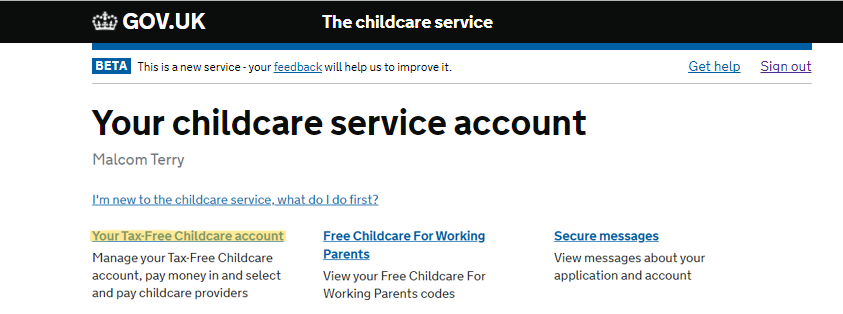
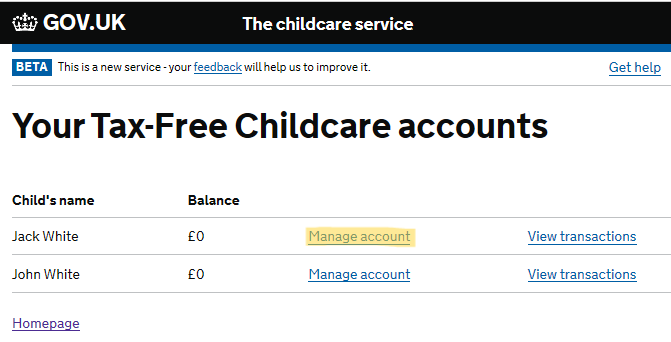
Click on the child account you need to link the childcare provider to
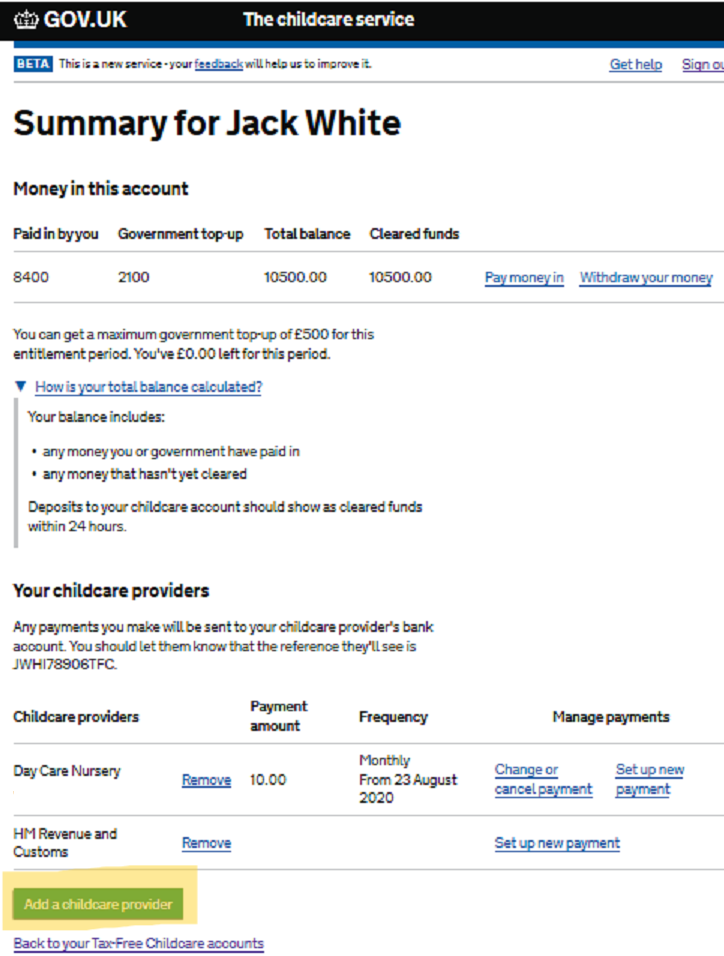
Click on ‘Add Childcare Provider’ button at the bottom of the page
Search for the childcare provider by their name, registration code, or postcode. You can find these details for each centre on your MagicBooking account by going to ‘Account’ -> clicking the ‘Centres’ tab. Here you will see the relevant information in the ‘Tax-Free Childcare Info’ column.
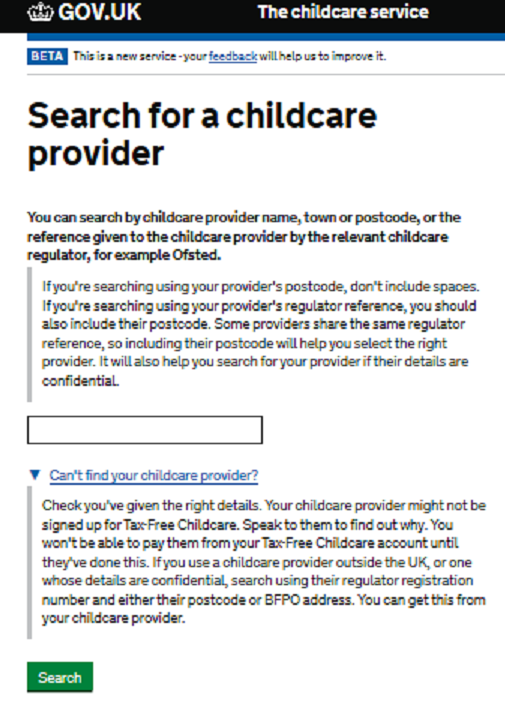
Select the childcare provider from the list and click ‘Continue’
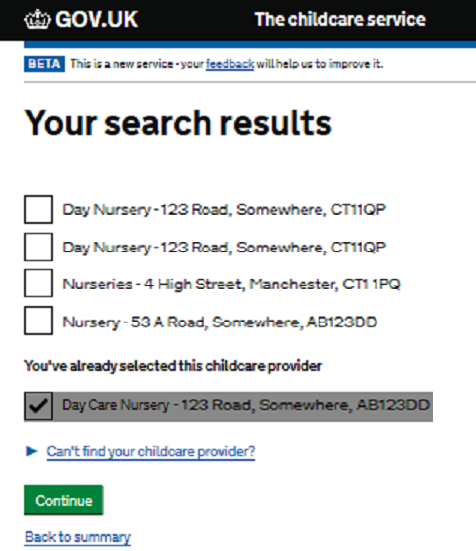
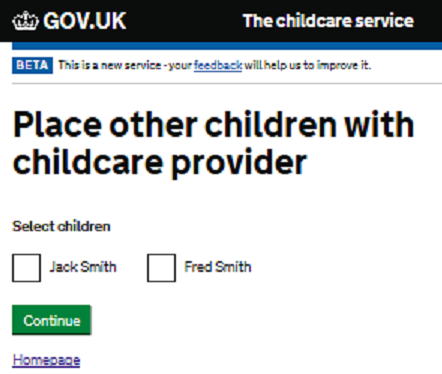
If you have more than one child on your Tax-Free Childcare account, you can choose to also link the selected childcare provider to their account. Once finished, click ‘Continue’
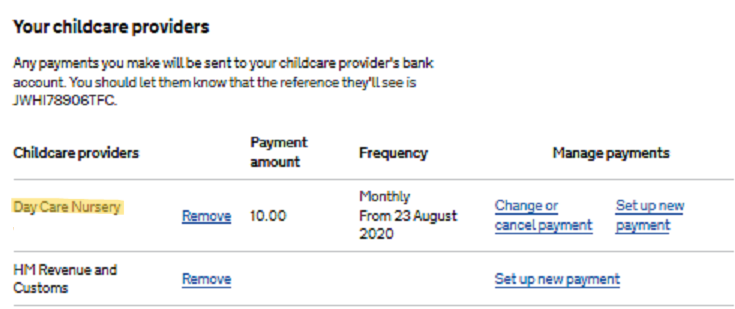
You’re childcare provider should now be linked to your child’s Tax-Free Childcare account. You can confirm this by checking the ‘Your Chidlcare Providers’ section of your childs account and making sure the providers name is in your list.
What are saved cards?
When you pay for a booking with a card instalment plan, the card details you enter at checkout for the initial payment are saved for future instalment plan payments on that booking.
The ‘Saved Cards’ tab in the ‘Account’ section shows you all the cards you have saved on your account that are linked to active instalment plans.
How do I view my saved cards?
To view your saved cards, navigate to the ‘Account’ section and click on the ‘Saved Cards’ tab.
Here you’ll be able to see all your saved cards.
What are centres?
Centres are the locations where your school or club offers their childcare services/provision.
Each bookable activity is linked to a centre.
Your child may attend one or more centres.
You can register your account to as many centres as you wish.
How do I view the centres my account is registered with?
To view your centres, navigate to the ‘Account’ section and click on the ‘Centres’ tab.
Here you’ll be able to see all centres your account is registered to.
How do I update my centres?
To update your centres, navigate to the ‘Account’ section and click on the ‘Centres’ tab and then click on the ‘Update Centres’ button.
Here you’ll be able to add or remove any centres to your account.
How do I obtain payment proof?
To obtain payment proof for childcare costs, navigate to the ‘Account’ section and click on the ‘Payment Proof’ tab.
Here you’ll be able to filter what transactions you are looking/need payment proof for. Fill out the required fields and click ‘View Statement’ to see a list of all transactions matching your search criteria.
You can download your payment proof statement by clicking the ‘Download’ button.
What are additional account holders?
Additional account holders are individuals you give access to your account and children, so they can make bookings and payments.
Additional account holders won’t be able to see or have access to your bookings unless they are granted full access.
How do I add an additional account holder?
To add an additional account holder, navigate to the ‘Account’ section and click on the ‘Additional Account Holder’ tab and then click the ‘Add account holder’ button.
Here you’ll be able to select the children to share with the additional account holder, as well as the additional account holder’s basic details.
⚠️ The email address you input for the additional account holder is the one they will sign in to their MagicBooking account with.
What does full access mean for an additional account holder?
Full access will grant an additional account holder the same level of privileges as you have, meaning:
- The ability to see your bookings and pay for them.
- The ability to use you account credit to pay for bookings of children you have given them access to.
- The ability to update centres (this will only affect the additional account holder’s account and won’t affect your main account).
How do I edit/delete an additional account holder?
To edit or delete an additional account holder, navigate to the ‘Account’ section and click on the ‘Additional Account Holder’ tab.
Find the additional account holder you’d like to manage and click on the edit or delete button.
I’ve paid for sessions, but it isn’t showing on my account. What do I do?
Sometimes it takes a few working days for our accounts department to reconcile payments with accounts (especially if you’re using a tax-free childcare account), if this happens to you, please don’t panic! You can email us at info@fiestasportscoaching.co.uk to check if payment is successful and your child’s place secured.
Help with my children
How do I add a child to my account?
Navigatе to the ‘Children’ section and click the ‘Add Child’ button.
Enter your child’s information and follow the steps to create their profile.
How do I view my child’s details?
Navigatе to the ‘Children’ section and click on the child you would like to view. If there are no children on your account, you’ll have to add one. To see how to add a child to your account, click here.
You’ll be able to view all your child’s details here—click on the different tabs to view, edit, or add to a section.
How can I edit my child’s details?
To edit your child’s details, navigate to the ‘Children’ section, select the child you would like to edit, and click the ‘Edit child details’ button.
Here you’ll be able to edit and save all your child’s basic details.
How can I add an emergency contact to my child’s profile?
To add an emergency contact to a child’s profile, navigate to the ‘Children’ section, select your child, and click on the ‘Contacts’ tab.
Here you’ll be able to add new and edit existing emergency contacts.
How can I add a collector to my child’s profile?
To add a collector to a child’s profile, navigate to the ‘Children’ section, select your child, and click on the ‘Contacts’ tab.
Here you’ll be able to add new and edit existing collectors.
How can I add a doctor contact to my child’s profile?
To add a doctor contact to a child’s profile, navigate to the ‘Children’ section, select your child, and click on the ‘Contacts’ tab.
Here you’ll be able to add new and edit existing doctor contacts.
How can I update my child’s consents?
To update your child’s consents, navigate to the ‘Children’ section, select the child you would like to edit, and click on the ‘Consents’ tab.
Here you’ll be able to edit and save all your child’s consents.
How can I manage my child’s dietary needs?
To manage your child’s dietary needs, navigate to the ‘Children’ section, select your child, and click on the ‘Dietary Needs’ tab.
Here you’ll be able to add and edit all your child’s dietary needs.
How can I manage my child’s allergies?
To manage your child’s allergies, navigate to the ‘Children’ section, select your child, and click on the ‘Allergies’ tab.
Here you’ll be able to add and edit all your child’s allergies.
How can I manage my child’s medications?
To manage your child’s medications and auto-injector, navigate to the ‘Children’ section, select your child, and click on the ‘Medications’ tab.
Here you’ll be able to add and edit all your child’s medications, as well as any auto-injectors they may have.
How can I manage my child’s medical conditions?
To manage your child’s medical conditions, navigate to the ‘Children’ section, select your child, and click on the ‘Medical Conditions’ tab.
Here you’ll be able to add and edit all your child’s medical conditions.
How can I manage my child’s SEND? How can I manage my child’s SEND?
To manage your child’s SEND, navigate to the ‘Children’ section, select your child, and click on the ‘SEND’ tab.
Here you’ll be able to add and edit all your child’s SEND.
Snack & Lunch at Camps
All our Camps require your child to bring lunch plus a snack for the morning. Unless the following:
Paid Lunches:
On occasionally camps we may provide the option for paid lunches e.g Easter & Summer Camp. When this option is available a lunch request from will be share with those who have booked this option. You child will need to bring a snack for the morning
HAF camp Lunches:
Lunch will be provided for those attending a HAF and will need to follow the process shared at the time from booking this. You child will need to bring a snack for the morning
Please note: Fiesta cannot be held responsible for any loss or damage to any personal belongings whilst attending a Fiesta activity. Children are permitted to not bring valuables including handheld computers or similar. Children won’t be allowed to play with these during our care.
Please can we ask that you do not bring any food containing nuts.
What sorts of snacks are on offer?
We do our best to make sure that snacks are healthy and hearty! We give fruit to children booked on for snack as soon as they finish the school day. Later on a bigger snack is offered- from toasties, to wraps, sandwiches and crackers, there’s plenty for your child to choose from!
Can I turn up with my child on the day?
No, all children must be pre-booked onto our holiday camps. Numbers are limited and camp days regularly sell out, so pre-booking is essential.
Do I have to stay with my child during the day?
No, parents are required to drop their children off at the designated drop off point and register their child in and in the knowledge that their children are safe and cared for.
What time should I drop off and pick up my child?
Camps usually drop off and collections at the following times:
- 4 Years old & in reception: 9:00am-13.00pm
- Standard: 8:45am-3.00pm
- Extended: 8.00am-4.30pm
Timings for our camps may vary. Please check your activity description during the booking process, the pre-camp email and make a note of this.
We understand that things happen from time to time and sometimes lateness is unavoidable. However, we do ask that you be respectful of these times and punctual when dropping off and collecting children. Lateness we will follow our late collection procedures.
What’s the procedures for dropping off and collecting?
On arrival, please report to the Fiesta designated drop off point, where we’ll check your child, it booked on and appearing on our register. It is parents’ responsibility to ensure their accounts are up to date with the correct details. We will check if we have the correct emergency contact and collection details. For safeguarding reasons, parents/carers are not permitted to go beyond the sign in point.
Are there any age restrictions?
Due to Ofsted ruling, children who are aged 4, and children who are currently in Reception can attend camp for a maximum of 4 hours (9am-1pm).
Children 5 to 12 years can attend a standard and extended day.
How are children grouped?
We tend to split the children into key stage groups i.e., Year R, 1 & 2 and then Yr3,4,5& 6. Dependent on numbers the groups may be split down again in half. Although number may change this slightly.
Can children from other schools attend camps at a school?
Yes, we accept children from all schools.
Extra Information
What discount will I get when booking siblings?
2 children Discount 5%
3 children Discount 7.5%
4 or more children discount 10%
This will be automatically applied at checkout.
Sibling discounts are applied when two or more siblings are booked for the same dates at the same centre whether on the same or different activities
or
only when two siblings are booked for the same period at the same centre and for the same activity.
My child needs help when going to the toilet. Can they attend fiesta services?
To attend our service, all children must be able to use the toilet independently unless they have a medical reason for needing assistance. If your child needs toilet assistance, please ensure this is stated on the medical information section on the booking form, and make sure they have everything they need with them at camp.
My child has a medical, behavioural, additional need. Can they attend?
We aim to make all our services as inclusive as possible. When creating your booking, you’ll be asked to provide any relevant medical, behavioural, or additional needs information. It’s very important that this is completed fully to ensure your child’s safe participation in our services. The information you provide will be instantly available to our on-site team. Please remember to update your account if your child’s details change.
Our team may contact you to discuss your child’s needs in more detail. This helps us understand any triggers, coping strategies, or behaviours, and allows us to suggest ways to ensure your child enjoys their time with us.
If your child requires 1:1 care, please email info@fiestasportscoaching.co.uk before making a booking so we can confirm whether the appropriate support can be provided.
At Fiesta, we welcome children with additional needs and disabilities. However, attendance must be agreed following a discussion between parents and our staff to ensure that all needs can be met within our staffing ratios. Parents are encouraged to discuss their child’s particular needs with us prior to booking by contacting info@fiestasportscoaching.co.uk
What if my child behaves badly during our activities?
At Fiesta, we promote and reward positive behaviour to create a safe and enjoyable environment for all children. When your child joins our activities, our staff will share our Fiesta Code of Behaviour, which is also displayed at every venue, so children know what is expected of them.
Minor behaviour issues will be addressed promptly and fairly by our team. However, in cases of persistent or serious behaviour concerns, we will contact parents and follow our Behaviour Policy.
What if my child has an accident?
All accidents (such as bumps, grazes, or stings) are treated by our First Aid trained staff. When you collect your child, our team will update you on what happened and ask you to sign an Accident Report Form so you are fully informed.
In the event of a more serious incident or if your child becomes unwell, we will contact you by telephone as soon as possible.
How much notice do I need to give if I want to cancel my child’s place?
Please refer to our latest Terms & Conditions and Customer Handbook, available within the activity description on the booking portal.
My child has left something in the provision, how do we get it back?
Our staff do lost property checks at the end of every session, but if something gets left behind, we keep it safe in the provision, or return it to the school’s lost property. You can ask our staff at the gate, and they’ll do their best to oblige.
Why can’t my 4 year old do a full day at camps?
As per Ofsted guidelines, 4 year olds who are in Reception can do 4 hour days at our holiday camps. This is due the ratios outlined by Government policies. We can take 4 year old’s at our camps from 9am-1pm.
Wraparound & Extra Curriculum Clubs
Can my child attend the extra curriculum club is they are booked for wraparound?
Yes, you child can attend the club at no extra cost.
Can my child bring their own snack?
We have an add on snack option for wraparound only. However, your child can bring their own snack.
What are your wraparound opening time?
Our wraparound usually started at 7:30am depending on the venue. We have different booking slots available. Our venues usually finish at 6pm
Can I make ad-hoc bookings?
Yes, we offer ad-hoc bookings for wraparound and camp activities which will be shown within our online booking system – https://fiestasportscoaching.magicbooking.co.uk/Identity/Account/Login
Can children from other schools attend wraparound or clubs at a school?
Unfortunately, we only accept bookings for children from the school that the services are being offered at.
What should my child wear to a Gymnastic / Dance Club?
For Gymnastics / Dance Clubs, children should arrive in trainers. Please dress them in suitable indoor clothing such as t-shirt, leggings and hoodie to allow them to move freely in an indoor space. Please remove any jewellery or watches.
When is protected time, and what does this mean?
Protected time for clubs and wraparound starts as soon as the school day finishes and doesn’t end until 4:30pm. This means that children can’t be collected before 4:30pm unless an agreement has been made prior to the session (e.g. in case of medical appointment etc.). We do protected time to ensure that activities aren’t interrupted by people leaving, it ensures a smooth transition from school to clubs.
Holiday Camp
What should my child wear to a Football Camp?
Sports clothes and suitable footwear (moulded boots, astros, or trainers). Please pack trainers for indoor activities and playtime. No jewellery, and long hair must be tied back.
What should me child wear to a Kids ActiveCamp?
Clothes and footwear suitable for sports and outdoor activities, weather-appropriate. No jewellery, and long hair must be tied back.
What does my child need for a day at camp?
All belongings should be brought to a camp in a bag and everything should be clearly labelled with your child’s name.
All children should bring:
- A large, filled water bottle
- Any medication your child needs (you can provide information about medication when booking the camp, we may ask you to fill in an additional form onsite for diligence)
- Suncream (to be applied before they arrive and by your child throughout the day if needed)
- Sun hat
- Waterproof coat
- Lunch and / or snack (see below for more information)
- Wellies and a change of clothes (Only for weather appropriate or when we share information on when these items are required)
How can I book my child onto a Course or Camp?
Parents can now use our website to book all camps and courses. Please follow the ‘Book Online’ Section of the website and follow the drop down links. Our preferred payment provider is PayPal.
Childcare vouchers/TFC vouchers
How do I use childcare vouchers/TFC Vouchers?
Refer to the sections in here: https://fiestasportscoaching.magicbooking.co.uk/Help
Can I use my tax-free childcare money?
Yes! As an Ofsted registered company, it is possible for you to use tax-free childcare funds to pay for our services.
We specialise in

SWIM:ED
Fiesta Sports Coaching brings high-quality school swimming lessons to your playground with our heated pop-up pools. No travel needed, just expert instructors, lifeguards, and engaging lessons delivered on-site across Corby, Kettering, Market Harborough, Peterborough, Northamptonshire and Leicestershire.

HOLIDAY CAMPS
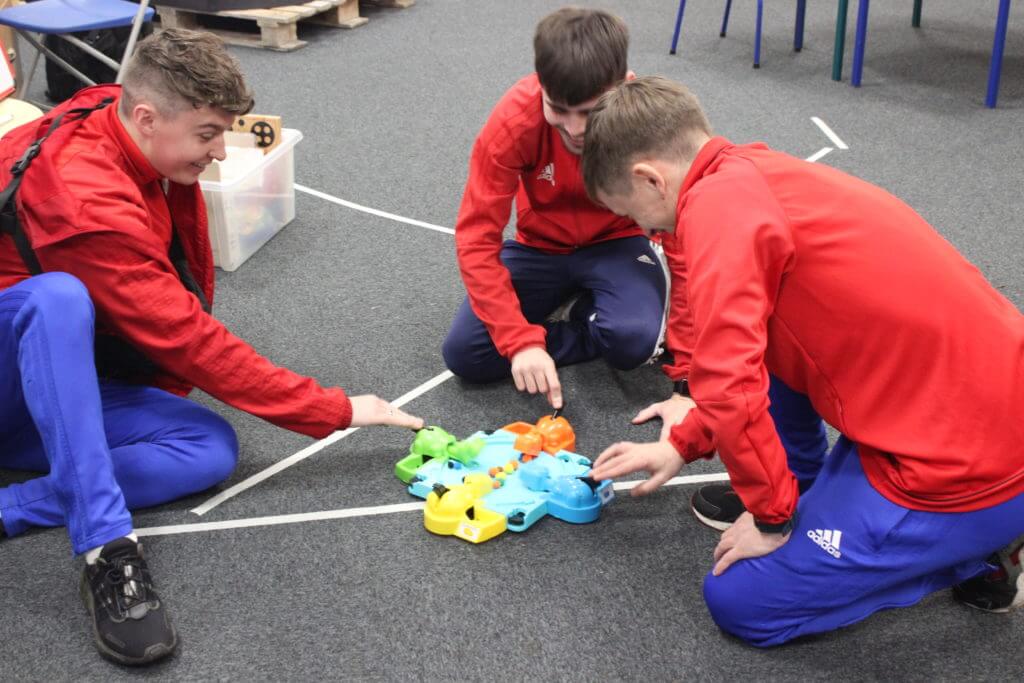
Fiesta Sports Coaching holiday camps keep kids aged 5–11 active, social, and learning during school breaks. From football to multi-sports, our fun-packed camps across Northamptonshire offer a safe, energetic environment to build skills and make new friends.
WRAPAROUND CARE
Fiesta Kids+ Wraparound Care offers reliable before- and after-school childcare in Corby, Kettering, Market Harborough, and the wider area. Led by qualified staff, our sessions keep children active, engaged, and supported in a safe, fun environment.
TESTIMONIALS